Connect an AI client
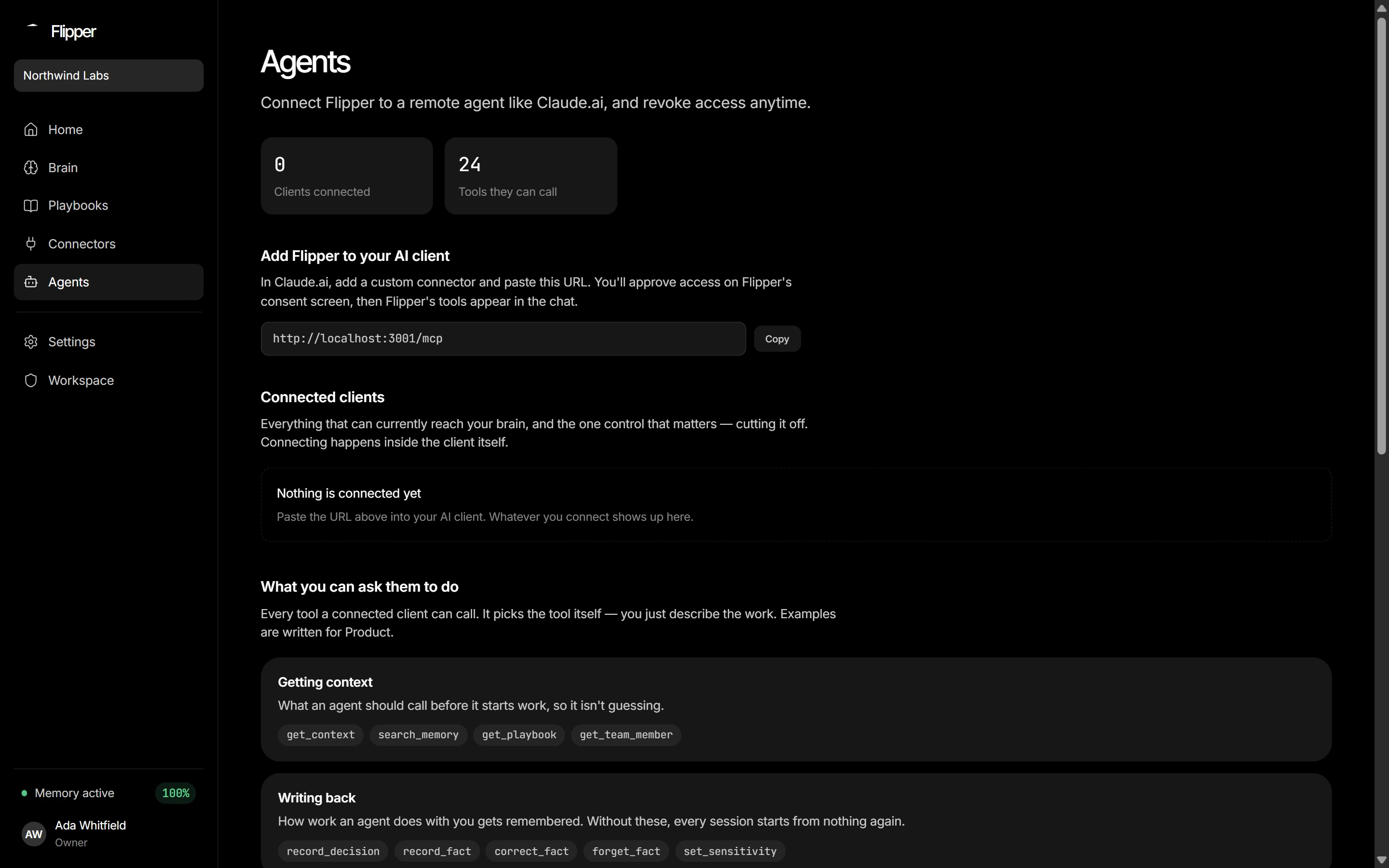
Flipper AI speaks MCP, so any MCP-capable agent can call its tools. Local agents run a small stdio bridge over npx; remote ones connect over OAuth with nothing to install.
Before you start
Node.js 20 or newer — every local client below runs the bridge with
npx.Your workspace id and an MCP token, both on the Agents page or in Settings → Developer.
Self-hosting? Add
FLIPPER_API_URLto the env block, pointed at your own instance.
Pick your client
Install
The fastest path — this writes the MCP config and verifies the connection in one step:
npx flipperai install --workspace <workspace-id> --token <mcp-token>
Prefer to configure by hand, or want it committed to a project's .mcp.json so your whole team gets it? Either run:
claude mcp add flipper -e FLIPPER_WORKSPACE_ID=<workspace-id> -e FLIPPER_TOKEN=<mcp-token> -- npx -y flipperai serve
or add this block to .mcp.json (project root, shared with your team) or ~/.claude.json (user-global):
{
  "mcpServers": {
    "flipper": {
      "command": "npx",
      "args": ["-y", "flipperai", "serve"],
      "env": {
        "FLIPPER_WORKSPACE_ID": "<workspace-id>",
        "FLIPPER_TOKEN": "<mcp-token>"
      }
    }
  }
}
Verify
Restart Claude Code (or start a new session) and run /mcp. You should see flipper listed as connected with Flipper AI's tools.
Confirm it is connected
Ask the agent to list its tools. You should see get_context among them. If nothing appears, the config file is in the wrong place or the client was not fully restarted — see Troubleshooting.